

CDSpace 6
One-click CD-ROM simulator to store and use CDs from virtual drives
Program info
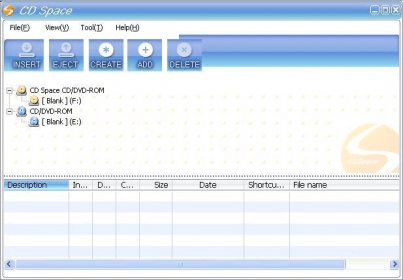
Are you a music lover? Or you keep browsing and playing lots of games? If you are renting various types of CDs and would love to store them in your computer before returning them, there is a smart tool available called CDSpace 6. This is a very user-friendly tool for most types of users. CDSpace 6 allows to create not one or two, but up to 23 different virtual CD drives on your computer hard disk. CDSpace 6 is a revolutionary tool to ensure that you keep playing all your lovable games for long time even without buying them. One can also ensure that the movies rented or borrowed from friends can be returned in minutes and still enjoy the program for hours and hours from your computer. You can also call your CDSpace 6 as a simulator of all types of CD-ROMs. One can also eject and read CDs direct from this tool. CDSpace 6 is compatible with most of the Windows operating systems including Vista 32 Bits. This tool also allows users to ensure that they are notified when a CD is inserted into the driver. Though the demo version only allows 2 virtual drives to be created, it is available for a trial period of 90 days, which is very generous from the developers.
Pros
- 90 day trial available
- Works with vista
- Up to 23 virtual drives
- Easy to use
Cons
- Not a free tool
- Demo only supports 2 virtual drives
Details
Extensions

No information available
The data will be available later.Awards



Related software

Performs any migration, no matter the source or target.

Disk Copy allows you to create a sector-by-sector disk/partition copy.

Copy 2D/3D Blu-ray to disc/folder/ISO files and clone it to BD disc.
Related stories
See all
Gen Z retro tech is rising: digital cameras, CDs, and DVDs are coming back because young users want ownership, offline rituals, and fewer algorithms.

Claude’s Constitution puts AI character, AI values, and Amanda Askell’s work at Anthropic in public view. The next question is who should write the moral personality of AI.

Windows 11 says your drive is full, but where did the space go? Here’s how to find hidden storage hogs and clean them up without breaking your system.


Comments